
Fill and create PDF forms in C# and .NET
Interactive PDF forms (AcroForm): read every field, fill values, flatten the result, or create new fields.
Short answer
Section titled “Short answer”doc.Form is the document’s form. Look a field up by its name, cast it to its kind and set the
value: the field’s appearance is redrawn at once. Flatten turns the values into plain page
content.
((PdfTextField)doc.Form["name"]!).Text = "Jamal Abdelkhalek";((PdfCheckBoxField)doc.Form["subscribe"]!).Checked = true;((PdfRadioButtonField)doc.Form["plan"]!).Selected = "pro";((PdfChoiceField)doc.Form["country"]!).Select("Morocco");doc.Save("application-filled.pdf"); // still a form: values can be changed in a viewerReading fields
Section titled “Reading fields”PdfDocument doc = PdfDocument.Open("application.pdf");foreach (PdfField field in doc.Form.Fields){ Console.WriteLine($"{field.Name} ({field.Kind}) = {field.Value ?? "empty"}");}Fields lists every field with its fully qualified name (address.city), and Form["name"] finds
one. Form.Exists tells whether the document has a form at all. Each field has a Kind, a Value
as text, a ToolTip, ReadOnly and Required flags, and its Widgets: the visible parts, each
with its Page and Rectangle. Attributes inherited from parent fields and the form defaults are
resolved.
| Field type | Kind | Value and members |
|---|---|---|
PdfTextField | Text | Text; Multiline, Password, Comb, MaxLength |
PdfCheckBoxField | CheckBox | Checked; OnValue, often “Yes” or “On” |
PdfRadioButtonField | RadioButton | Selected; Options lists each button’s value |
PdfChoiceField | ComboBox or ListBox | Select(value), Select(values), SelectedValues, Options; Editable, MultiSelect |
PdfPushButtonField | PushButton | No value |
PdfSignatureField | Signature | IsSigned |
PdfUnknownField | Unknown | A field of a type the library does not know |
Filling and appearances
Section titled “Filling and appearances”Setting Text, Checked, Selected or calling Select regenerates the field’s appearance from
its border, background, font and color settings, with multiline wrapping, comb cells, password
masking and automatic font size. A font the form embeds whole is reused; other fonts map to the
closest standard font. Documents that also carry an XFA form lose it when a value changes, so
viewers show the AcroForm values.
Flattening
Section titled “Flattening”doc.Form.Flatten(); // values become page content, the form is removeddoc.Save("application-flat.pdf");Flatten draws every field’s current appearance into its page and removes the form. The values
stay visible and printable but can no longer be edited. Hidden fields are dropped. Each appearance
is placed as annotation flattening places it, see
Annotations, so a single field can also be flattened
with page.Annotations.Flatten(widget).
Formatted values
Section titled “Formatted values”Many forms format what a field shows with a format action, a call to one of the standard Acrobat
form functions. PdfNetStack reads that call and does the formatting in C#: no JavaScript runs.
The generated appearance shows the formatted value, and PdfTextField.FormattedText returns it,
while Text keeps the value as stored.
// The value is stored as typed; the appearance and FormattedText show it formatted.field.Text = "-1234.5";Console.WriteLine($"{field.Text} shows as {field.FormattedText}");doc.Save("application-amount.pdf");AFNumber_Format, AFPercent_Format, AFDate_Format, AFDate_FormatEx, AFTime_Format,
AFTime_FormatEx and AFSpecial_Format are understood, red for negative numbers included. A
script that is anything else, or a value the format cannot read, shows the value as it is.
Fields in imported pages
Section titled “Fields in imported pages”Fields travel with their pages. Pages.Import, PdfDocument.Merge and Split copy each widget’s
field and its parent fields into the target form, with the source form’s default appearance,
alignment, resources and calculation order.
// Fields come along with their pages. A top level name the target form already uses gets the// first free suffix: the second copy's fields become name_2, plan_2 and so on.PdfDocument twice = PdfDocument.Merge([PdfDocument.Open("application.pdf"), PdfDocument.Open("application.pdf")]);Console.WriteLine(string.Join(", ", twice.Form.Fields.Select(f => f.Name)));twice.Save("applications.pdf");A top level field whose name the target form already uses is renamed with the first free suffix,
_2, _3 and so on, so merging the same form twice gives two independent sets of fields.
Creating fields
Section titled “Creating fields”Positions are points from the page’s top left corner, as for drawing: x, y, width, height.
PdfAcroForm form = doc.Form;// Positions are points from the page's top left, as for drawing: x, y, width, height.form.AddTextField(page, "name", 160, 100, 220, 20, options: new PdfFieldOptions { Required = true, ToolTip = "Full name" });form.AddCheckBox(page, "subscribe", 72, 134, 14, 14, isChecked: true);form.AddRadioGroup("plan", [(page, 160, 164, 14, 14, "free"), (page, 220, 164, 14, 14, "pro")], selected: "free");form.AddComboBox(page, "country", 160, 190, 150, 20, ["Belgium", "France", "Morocco"], selected: "France");form.AddListBox(page, "interests", 160, 222, 150, 60, ["Compression", "Forms", "Signatures"], options: new PdfFieldOptions { MultiSelect = true });form.AddTextField(page, "postcode", 160, 300, 100, 22, options: new PdfFieldOptions { MaxLength = 5, Comb = true });form.AddSignatureField(page, "signature", 160, 340, 220, 50);form.AddPushButton(page, "help", 400, 100, 80, 22, "Help", new Uri("https://example.com/help"));doc.Save("form.pdf");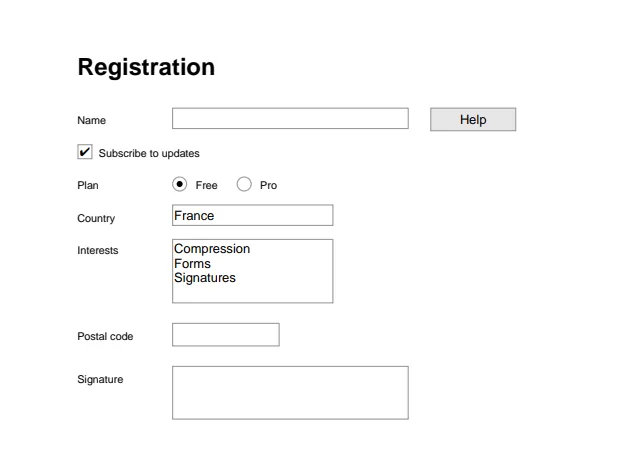
| Method | Creates |
|---|---|
AddTextField | A text box, with an optional initial value |
AddCheckBox | A check box, checked or not |
AddRadioGroup | Radio buttons sharing one value; buttons may sit on different pages |
AddComboBox | A drop down list |
AddListBox | A scrolling list, with several selections when MultiSelect is set |
AddSignatureField | An empty signature field, to be signed later by this library or a viewer |
AddPushButton | A button with a caption, opening a web address when one is given |
Each new field comes with its appearance and the print flag. Field names must be unique in the form and contain no dots.
Field options
Section titled “Field options”PdfFieldOptions sets how a new field looks and behaves. Options a field kind has no use for are
ignored.
| Option | Default | Notes |
|---|---|---|
Font | Helvetica | One of the standard fonts, which every viewer has to type with |
FontSize | 0 | 0 fits the text to the field |
TextColor | black | |
BorderColor, BorderWidth | gray, 1 | Null color for no border |
BackgroundColor | white | Null for transparent |
ToolTip | null | Also read by screen readers |
ReadOnly, Required | false | |
Alignment | Left | Text fields |
Multiline, Password | false | Text fields |
MaxLength, Comb | 0, false | Text fields: length limit, and one character per equal cell |
Editable | false | Combo boxes accept text outside the options |
MultiSelect | false | List boxes accept several selections |
To sign a document, see Signatures.
Limits
Section titled “Limits”- XFA forms are not supported: they are dropped when values change.
- No JavaScript runs. Format actions are read as calls to the standard Acrobat functions above; keystroke, validation and calculation scripts are ignored.
- New fields use the standard fonts, so their text is limited to what those fonts cover.
Related
Section titled “Related”- Annotations
- Signatures
- Coordinates and units
- API: PdfAcroForm, PdfField, PdfFieldOptions, PdfTextField, PdfChoiceField
Questions
- Will filled values show in every PDF viewer?
- Yes. Setting a value redraws the field's appearance from its border, background, font and color settings, so the form does not rely on the viewer to rebuild it.
- How do I make a filled form read only?
- Call doc.Form.Flatten(). Every field's appearance is drawn into its page and the form is removed, so the values stay visible and printable but can no longer be edited.
- Does PdfNetStack support XFA forms?
- No. Documents that also carry an XFA form lose it when values change, so viewers show the AcroForm values.