
Draw on PDF pages in C# and .NET
A canvas for PDF pages: shapes, paths, colors, gradients, transforms and clipping, on new pages and on pages you opened.
Short answer
Section titled “Short answer”Call CreateGraphics() on a page to get a PdfGraphics canvas. Coordinates are points (1/72
inch) from the top left corner of the page, with y pointing down. Dispose the canvas, or save the
document, and the drawing is written into the page.
#:package PdfNetStack@1.2.0using PdfNetStack;using PdfNetStack.Drawing;using PdfNetStack.Fonts;
PdfDocument doc = PdfDocument.Create();PdfPage page = doc.Pages.Add(PdfRectangle.A4);using (PdfGraphics g = page.CreateGraphics())          // origin top left, y down, points{    g.DrawRectangle(null, PdfColor.FromHex("#1E3A8A"), 0, 0, page.Width, 120);    g.DrawString("Hello, PDF", PdfStandardFont.HelveticaBold, 32, PdfColor.White, 40, 75);    g.DrawString("Made with PdfNetStack.", PdfStandardFont.Helvetica, 12, PdfColor.Black, 40, 160);}doc.Save("hello.pdf");
The canvas
Section titled “The canvas”PdfDocument doc = PdfDocument.Create();PdfPage page = doc.Pages.Add(PdfRectangle.A4); // 595 x 842 pointsusing PdfGraphics g = page.CreateGraphics(); // origin top left, y down, pointsg.Width and g.Height give the page size in points. A4 is 595 by 842 points, US Letter 612 by
792. The page’s /Rotate is not applied: coordinates are those of the unrotated page. See
Coordinates and units for how this canvas relates to the
coordinates text and image extraction report.
A PdfGraphics is not thread safe. Use one canvas per page and per thread.
Shapes and paths
Section titled “Shapes and paths”Every shape method takes a pen for the outline and a brush for the fill, in that order. Pass
null for either one to leave it out. A PdfColor converts to a solid brush.
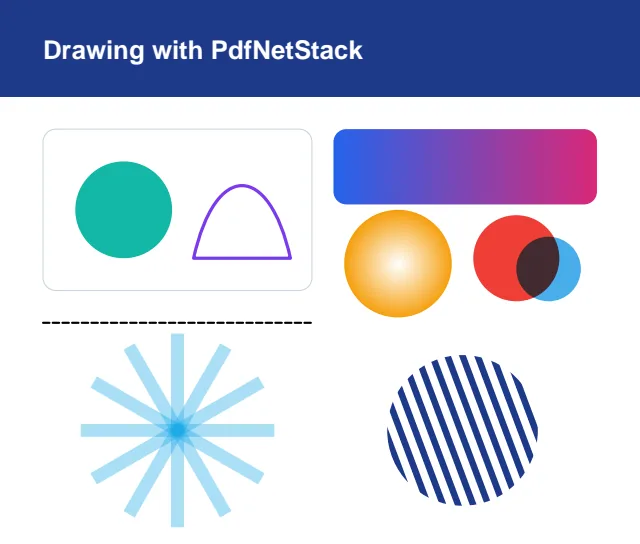
// Pen first (or null for no outline), then brush (or null for no fill).g.DrawRectangle(null, PdfColor.FromHex("#1E3A8A"), 0, 0, g.Width, 90);g.DrawRoundedRectangle(new PdfPen(PdfColor.FromHex("#CBD5E1")), PdfColor.White, 40, 120, 250, 150, 12);g.DrawEllipse(null, PdfColor.FromHex("#14B8A6"), 70, 150, 90, 90);g.DrawLine(new PdfPen(PdfColor.Black, 2) { DashPattern = [6, 3], LineCap = PdfLineCap.Round }, 40, 300, 290, 300);
var path = new PdfPath() .MoveTo(180, 240) .CurveTo(200, 150, 250, 150, 270, 240) .Close();g.DrawPath(new PdfPen(PdfColor.FromHex("#7C3AED"), 3) { LineJoin = PdfLineJoin.Round }, null, path);| Method | Draws |
|---|---|
DrawLine, DrawLines | A segment, or connected segments through a list of points |
DrawRectangle | A rectangle from its top left corner |
DrawRoundedRectangle | A rectangle with one radius, or with PdfCornerRadii for elliptical corners sized like CSS border-radius |
DrawEllipse | An ellipse inscribed in a rectangle |
DrawArc, DrawPie | Part of an ellipse; angles in degrees from the x axis, clockwise on the canvas |
DrawBezier | A cubic Bezier curve |
DrawPolygon | A closed polygon, with the nonzero or even-odd fill rule |
DrawPath | Any PdfPath |
PdfPath builds outlines step by step: MoveTo, LineTo, CurveTo, QuadraticCurveTo,
AddArc, AddRectangle, AddRoundedRectangle, AddEllipse, AddCircle, AddPolygon and
Close. Its FillRule decides how overlapping parts fill.
PdfPen is an immutable record: create one with a color and a width, and derive variants with
with.
| Property | Default | Notes |
|---|---|---|
Color | Stroke color, with its opacity | |
Width | 1 | In points. 0 draws the thinnest line the device can show |
LineCap | Butt | Butt, Round or Square |
LineJoin | Miter | Miter, Round or Bevel |
MiterLimit | 10 | At least 1 |
DashPattern | solid | Alternating dash and gap lengths in points |
DashOffset | 0 | Where in the pattern the line starts |
Colors, gradients and transparency
Section titled “Colors, gradients and transparency”var gradient = new PdfLinearGradientBrush(new PdfPoint(310, 0), new PdfPoint(555, 0), PdfColor.FromHex("#2563EB"), PdfColor.FromHex("#DB2777"));g.DrawRoundedRectangle(null, gradient, 310, 120, 245, 70, 12);
var glow = new PdfRadialGradientBrush(new PdfPoint(370, 245), 50, PdfColor.White, PdfColor.FromHex("#F59E0B"));g.DrawEllipse(null, glow, 320, 195, 100, 100);
g.DrawEllipse(null, PdfColor.Cmyk(0, 0.9, 0.85, 0), 440, 200, 80, 80); // CMYK, for printusing (g.Save()){ g.BlendMode = PdfBlendMode.Multiply; // one of the 16 PDF blend modes g.DrawEllipse(null, PdfColor.Rgb(0.1, 0.6, 0.9, alpha: 0.8), 480, 220, 60, 60); // 80% opaque}PdfColor.Gray,Rgb(components 0 to 1),FromRgb(0 to 255),CmykandFromHex(#RGB,#RGBA,#RRGGBBor#RRGGBBAA) create device colors. CMYK is written as DeviceCMYK, for print workflows.- Every color has an opacity: pass
alpha, or callWithAlpha. Opacity below 1 is written as a constant alpha graphics state. PdfLinearGradientBrushandPdfRadialGradientBrushtake two colors, or a list ofPdfGradientStopvalues for more. Gradient points are canvas coordinates.BlendModesets one of the 16 PDF blend modes, such asMultiplyorScreen, for what is drawn next. It is saved and restored with the graphics state.
Transforms, saved states and clipping
Section titled “Transforms, saved states and clipping”using (g.Save()) // transform, clip and colors come back after the block{ g.TranslateTransform(165, 400); for (int i = 0; i < 12; i++) { g.RotateTransform(30); g.DrawRectangle(null, PdfColor.FromHex("#0EA5E9").WithAlpha(0.35), 0, -6, 90, 12); }}
using (g.Save()){ g.IntersectClip(new PdfPath().AddCircle(430, 400, 70)); // nothing outside the circle shows for (double x = 300; x < 540; x += 14) { g.DrawLine(new PdfPen(PdfColor.FromHex("#1E3A8A"), 6), x, 320, x + 60, 480); }}TranslateTransform, ScaleTransform, RotateTransform (clockwise for positive angles),
RotateAtTransform and MultiplyTransform with a PdfMatrix change where later drawing lands.
Save records the transform, clip, colors and pen settings; dispose its result, or call
Restore, to return to them. IntersectClip narrows the area that shows to a rectangle or a path.
Drawing behind existing content
Section titled “Drawing behind existing content”CreateGraphics(PdfGraphicsLayer.Background) draws underneath what a page already shows. Use it
for letterheads, stationery and colored backgrounds that must not cover the text.
PdfDocument doc = PdfDocument.Open("report.pdf");foreach (PdfPage page in doc.Pages){ // Background: drawn underneath the page's existing content, which stays on top. using PdfGraphics g = page.CreateGraphics(PdfGraphicsLayer.Background); g.DrawRectangle(null, PdfColor.FromHex("#E0F2FE"), 0, 0, g.Width, 160); g.DrawLine(new PdfPen(PdfColor.FromHex("#0284C7"), 2), 40, 160, g.Width - 40, 160); g.DrawString("Example Company, 1 Main Street", PdfStandardFont.Helvetica, 9, PdfColor.FromHex("#0369A1"), 400, 24);}doc.Save("report-letterhead.pdf");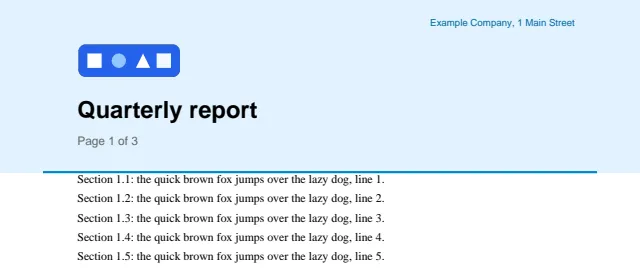
On an existing page, the page’s own content is wrapped in a save and restore pair, so graphics state it leaves behind cannot change your drawing. Resources shared with other pages are never modified.
Text, images and links on the canvas
Section titled “Text, images and links on the canvas”The canvas also draws text and images. Each has its own guide:
DrawStringandDrawTextfor single lines and wrapped paragraphs: Fonts and text.DrawImage,DrawSvgandDrawFormfor images, vector drawings and pages of other PDFs: Images.AddLinkfor a clickable area that follows the current transform: Annotations.DrawInvisibleTextwrites text that is not drawn but selects, copies and searches, stretched to fill a box. Laid over the words an OCR engine found, it makes a scanned page searchable. See OCR.
Limits
Section titled “Limits”- Colors are device colors. There is no ICC based color management for drawn colors, and
ToRgbconverts CMYK by the naive formula. - Patterns and shadings beyond linear and radial gradients are not available on the canvas.
Related
Section titled “Related”- Fonts and text
- Images
- Coordinates and units
- API: PdfGraphics, PdfPath, PdfPen, PdfColor, PdfLinearGradientBrush, PdfMatrix
Questions
- Can I draw on a page of an existing PDF?
- Yes. PdfPage.CreateGraphics works on new and opened pages. It draws over the existing content by default, or underneath it with PdfGraphicsLayer.Background.
- Which color models are supported?
- Gray, RGB and CMYK device colors, each with an opacity, plus linear and radial gradients and the 16 PDF blend modes.