
PDF links and annotations in C# and .NET
Links, notes, text markup, free text, stamps, ink, shapes and file attachments on PDF pages, the annotations a file already has, and flattening them into page content.
Short answer
Section titled “Short answer”page.Annotations lists a page’s annotations and adds new ones. Positions use the same
coordinates as the drawing canvas: points from the top left corner of the page, y down. Each new
annotation comes with an appearance stream, so every viewer shows it the same way.
PdfDocument doc = PdfDocument.Open("manual.pdf");PdfPage page = doc.Pages[0];
// Same coordinates as drawing: points from the top left of the page, y down.page.Annotations.AddLink(72, 95, 220, 20, new Uri("https://example.com/manual"));   // opens a web addresspage.Annotations.AddLink(72, 160, 400, 14, doc.Pages[3], top: 100);                // goes to page 4page.Annotations.AddTextMarkup(PdfTextMarkup.Highlight, 70, 178, 410, 16, comment: "Check this line");page.Annotations.AddTextMarkup(PdfTextMarkup.StrikeOut, 70, 196, 410, 16);page.Annotations.AddNote(500, 150, "Please review section 1.2", author: "Reviewer");page.Annotations.AddFreeText(330, 230, 200, 40, "Updated for version 2.",    new PdfTextStyle(PdfStandardFont.Helvetica, 11), border: PdfColor.FromHex("#2563EB"), fill: PdfColor.FromHex("#EFF6FF"));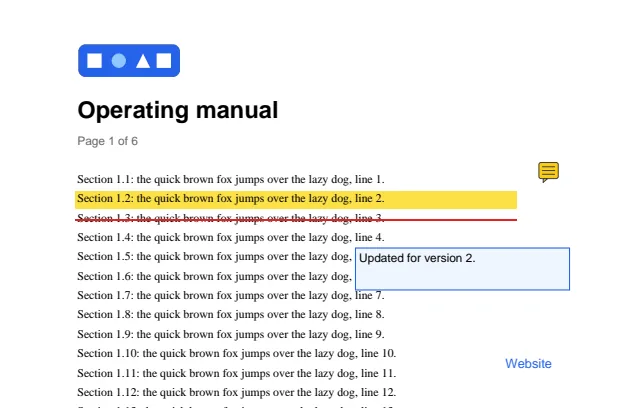
What you can add
Section titled “What you can add”| Method | Adds |
|---|---|
AddLink(x, y, width, height, uri) | A link that opens a web address |
AddLink(x, y, width, height, page, top) | A link to a page of the same document, shown from top points below its top edge, or whole when top is null |
AddNote(x, y, text, author, color) | A sticky note icon that opens the text |
AddTextMarkup(kind, x, y, width, height, color, comment) | Highlight (yellow by default), Underline, StrikeOut or Squiggly over a text area |
AddFreeText(x, y, width, height, text, style, border, fill) | Text written in a box, with an optional border and fill |
AddStamp(stamp, x, y, width, height, options) | One of the fourteen standard rubber stamps (PdfStampName), framed, in the stamp’s color |
AddStamp(x, y, width, height, appearance, name, options) | A custom stamp showing a PdfForm of the document, such as a logo or a signature image |
AddStamp(x, y, width, height, draw, name, options) | A custom stamp drawn by a callback on a canvas of the stamp’s size |
AddSquare, AddCircle(x, y, width, height, options) | A rectangle or an ellipse filling the box, the border drawn inside it |
AddLine(start, end, options) | A straight line, with optional endings at either end (PdfLineEnding) |
AddPolygon(vertices, options), AddPolyline(vertices, options) | A closed polygon, or connected lines with optional endings |
AddInk(strokes, options) | Freehand ink: one or more strokes, each a list of points |
AddFileAttachment(x, y, fileName, data, mimeType, icon, options) | A file embedded behind an icon at one spot on the page (PdfAttachmentIcon) |
Every method returns the new PdfAnnotation. Remove(annotation) takes one off the page.
Text markup does not find the text for you: pass the rectangle of the words. Text extraction reports word bounds, see Extract text and Coordinates and units to convert them.
Stamps, shapes, ink and attachments
Section titled “Stamps, shapes, ink and attachments”The newer annotation kinds take a PdfAnnotationOptions for their look. Each comes with a
generated appearance, so every viewer shows it as drawn.
// One of the fourteen standard stamps, and a custom one drawn on a canvas of the stamp's size.page.Annotations.AddStamp(PdfStampName.Approved, 400, 30, 150, 45, new PdfAnnotationOptions { Opacity = 0.85 });page.Annotations.AddStamp(400, 85, 150, 40, g =>{ g.DrawRoundedRectangle(new PdfPen(PdfColor.FromHex("#7C3AED"), 2), null, 1, 1, 148, 38, 6); g.DrawString("RECEIVED", PdfStandardFont.HelveticaBold, 18, PdfColor.FromHex("#7C3AED"), 26, 26);}, "Received");var red = new PdfAnnotationOptions { Color = PdfColor.FromHex("#DC2626"), BorderWidth = 2, Comment = "Wrong figure" };page.Annotations.AddSquare(66, 196, 420, 22, red);page.Annotations.AddCircle(66, 250, 140, 40, new PdfAnnotationOptions{ Color = PdfColor.FromHex("#2563EB"), InteriorColor = PdfColor.FromHex("#2563EB"), Opacity = 0.25,});page.Annotations.AddLine(new PdfPoint(240, 320), new PdfPoint(300, 285), new PdfAnnotationOptions{ BorderWidth = 2, EndEnding = PdfLineEnding.ClosedArrow, InteriorColor = PdfColor.FromHex("#DC2626"), Comment = "See this paragraph",});page.Annotations.AddPolygon([new PdfPoint(330, 330), new PdfPoint(420, 330), new PdfPoint(375, 380)], new PdfAnnotationOptions { Color = PdfColor.FromHex("#059669"), DashPattern = [4, 2] });page.Annotations.AddPolyline([new PdfPoint(450, 380), new PdfPoint(480, 340), new PdfPoint(510, 370), new PdfPoint(540, 330)], new PdfAnnotationOptions { Color = PdfColor.FromHex("#059669"), StartEnding = PdfLineEnding.Circle });// Freehand strokes, each a list of points from the page's top left corner.var stroke = Enumerable.Range(0, 40).Select(i => new PdfPoint(80 + i * 8, 420 + 10 * Math.Sin(i / 3.0)));page.Annotations.AddInk([stroke], new PdfAnnotationOptions { Color = PdfColor.FromHex("#EA580C"), BorderWidth = 2.5 });// A file embedded at one spot on the page, behind an icon.byte[] csv = Encoding.UTF8.GetBytes("quarter,revenue\nQ1,1200\nQ2,1350\n");page.Annotations.AddFileAttachment(520, 250, "figures.csv", csv, "text/csv", PdfAttachmentIcon.Paperclip, new PdfAnnotationOptions { Comment = "Source figures" });doc.Save("reviewed.pdf");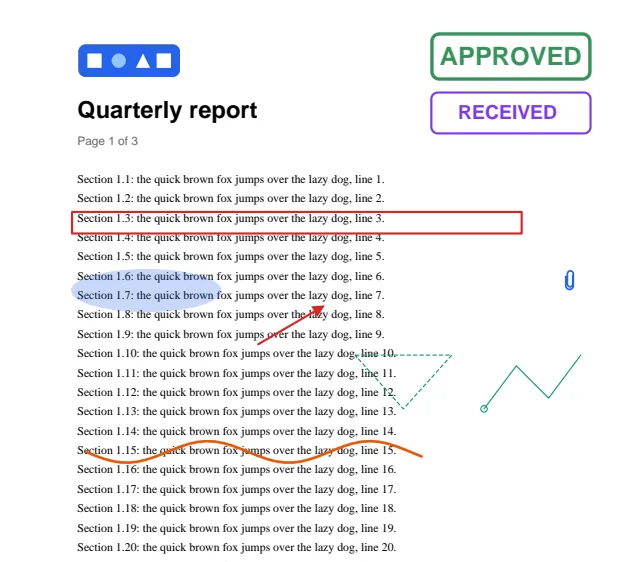
| Option | Applies to | Meaning |
|---|---|---|
Color | All | The line, border, stamp or icon color; null for the kind’s default (red for shapes and ink) |
InteriorColor | Squares, circles, polygons, stamps, closed line endings | The fill; null for none |
BorderWidth | Lines, ink, shapes | Stroke width in points, 0 for no stroke. Default 1 |
DashPattern | Lines, ink, shapes | Dash and gap lengths in points; empty for a solid stroke |
StartEnding, EndEnding | Lines, polylines | The shape at the first and last point |
Opacity | All | From 0 to 1. Below 1 the drawing is a transparency group faded as a whole |
Comment, Author, Subject | All | What a viewer shows in the annotation’s pop up |
Font | Standard stamps | Helvetica Bold when null. PDF/A output needs an embedded font |
The file behind a file attachment annotation reads back through PdfAnnotation.Attachment, with
its name, type and data. Unlike PdfDocument.Attachments, the file belongs to that spot on the
page. Saved as PDF/A-3, such files are declared as associated files; PDF/A-2 refuses them.
Flatten annotations
Section titled “Flatten annotations”Flattening draws an annotation’s appearance into the page content and removes the annotation, with its pop up. The page looks the same, prints the same, and nothing is left to edit or move.
// Every markup annotation becomes page content: it prints and shows the same everywhere,// and can no longer be edited or moved. Links and form fields stay unless options ask for them.PdfDocument flat = PdfDocument.Open("reviewed.pdf");int count = flat.FlattenAnnotations();flat.Save("reviewed-flat.pdf");Console.WriteLine($"Flattened {count} annotations");| Method | Flattens |
|---|---|
PdfDocument.FlattenAnnotations(options) | The annotations of every page. Returns how many |
PdfAnnotationCollection.Flatten(options) | The annotations of one page. Returns how many |
PdfAnnotationCollection.Flatten(annotation) | One annotation. Returns false, changing nothing, when it is hidden, not shown on screen, or has no appearance |
By default notes, text markup, free text, stamps, ink, shapes and file attachments are
flattened. Hidden and NoView annotations, pop ups and annotations without an appearance stay.
PdfFlattenOptions.IncludeLinks also flattens links: their look stays and they stop working.
IncludeWidgets also flattens form fields, which show their current value and leave the form.
Each appearance is fitted to its rectangle as ISO 32000-1, 12.5.5 describes, kept upright on
rotated pages for annotations marked NoRotate, and kept inside its optional content group.
Links that follow the canvas
Section titled “Links that follow the canvas”PdfGraphics.AddLink adds a link over a rectangle in current canvas coordinates. Under a
transform, the link covers the transformed rectangle’s bounds, so a link drawn with its label
stays on the label.
// A link drawn with the canvas follows its transform.using (PdfGraphics g = page.CreateGraphics()){ g.TranslateTransform(470, 330); g.DrawString("Website", PdfStandardFont.Helvetica, 12, PdfColor.FromHex("#2563EB"), 0, 12); g.AddLink(0, 0, 50, 16, new Uri("https://example.com"));}doc.Save("annotated.pdf");Reading annotations
Section titled “Reading annotations”page.Annotations lists every annotation on the page, of any kind a file contains.
foreach (PdfAnnotation annotation in PdfDocument.Open("annotated.pdf").Pages[0].Annotations){ string target = annotation.Uri ?? (annotation.Destination is PdfPage p ? $"page {p.Index + 1}" : ""); Console.WriteLine($"{annotation.Subtype,-10} {annotation.Rectangle} {annotation.Contents} {target}");}| Property | Meaning |
|---|---|
Subtype | The kind, such as Link, Text, Highlight, FreeText or Widget |
Rectangle | Where it sits, in PDF user space (origin bottom left, y up) |
Contents | The text of a note or comment, or the description of other annotations |
Uri | The web address a link opens, or null |
Destination | The page a link goes to in the same document, named destinations included, or null |
Dictionary | The annotation dictionary, for everything else |
Form fields show on pages as Widget annotations. Fill them through the form API instead: see
Forms.
Annotations and page edits
Section titled “Annotations and page edits”Annotations travel with their page when pages are moved or imported, and are copied fresh for every import. Links to pages imported in the same call are remapped; links to pages left behind become empty. Named destinations, which bookmarks and links point at by name, can be listed and renamed: see Edit pages.
Limits
Section titled “Limits”- Text markup takes the rectangle you give it; it does not search the page for the words.
- Flattening draws the normal appearance (or the one the annotation’s state selects). An annotation without an appearance stream is left in place, except a link, which is removed.
- Sound, movie, 3D and redaction annotations cannot be added. Existing ones are read like any other annotation.
Related
Section titled “Related”- Forms
- Drawing
- Edit pages
- API: PdfAnnotationCollection, PdfAnnotation, PdfAnnotationOptions, PdfStampName, PdfFlattenOptions, PdfTextMarkup
Questions
- Do annotations added by PdfNetStack look the same in every viewer?
- Yes. Each new annotation carries its own appearance stream, so viewers show it as drawn instead of rebuilding it.
- Can annotations be flattened into the page?
- Yes. PdfDocument.FlattenAnnotations draws every markup annotation's appearance into the page content and removes the annotation. Links and form fields stay unless PdfFlattenOptions asks for them.
- Which coordinates do annotation methods use?
- The same as drawing, points from the top left corner of the page with y down. Reading an annotation's Rectangle returns PDF user space, origin bottom left.